

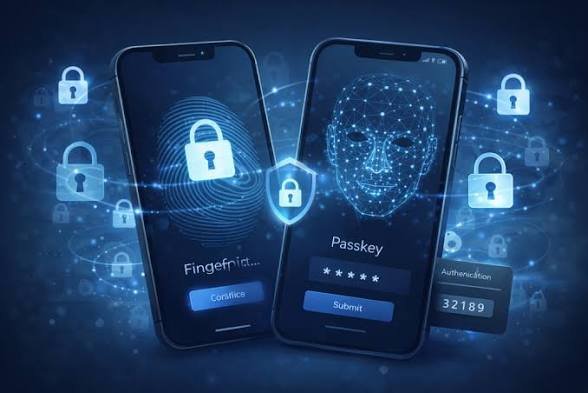
The Complete Phone Security Checklist for 2026Official guidance from Apple, Google, and CISA to lock down your smartphone in 30 minutesYour smartphone holds everything: banking apps, private photos, work emails, health data, and two-factor authentication codes.

Yet most people rely on default settings that leave critical vulnerabilities wide open. This checklist, based on official 2026 guidance from Apple, Google, and the U.S.
Cybersecurity and Infrastructure Security Agency (CISA), walks you through every essential security setting—prioritized by impact.
Quick-Start: 6 Steps in 15 MinutesIf you only have 15 minutes, complete these high-impact actions first:Step 1: Enable alphanumeric passcode (2 minutes)Go to Settings → Face/Touch ID & Passcode → Change Passcode → Passcode Options → Custom Alphanumeric Code.
This blocks 80% of brute-force attacks.
Step 2: Turn on Stolen Device Protection (1 minute)Settings → Face/Touch ID & Passcode → Stolen Device Protection → On.
This prevents data access even if someone knows your passcode when away from trusted locations. Step 3: Enable Advanced Data Protection for iCloud (5 minutes)Settings → [Your Name] → iCloud → Advanced Data Protection → Turn On.
This end-to-end encrypts backups, photos, notes, and more so only your devices hold decryption keys, not Apple. Step 4: Activate Passkeys for critical accounts (5 minutes)Use iCloud Keychain or a password manager like 1Password to replace SMS 2FA with FIDO2 passkeys. Start with Google,
Microsoft, Apple ID, and banking accounts. Step 5: Lock your SIM card (2 minutes)Settings → Cellular → SIM PIN → Turn On. Then contact your carrier to enable SIM swap protection PIN.
This blocks account takeovers via SIM swap fraud. Step 6: Enable automatic updates (1 minute)Settings → General → Software Update → Automatic Updates → All toggles On. Most 2026 exploits target already-patched vulnerabilities—automatic updates close this window. Section 1: Initial Secure SetupScreen LockUse an 8+ character alphanumeric passcode (not 4 or 6 digits).
Four-digit codes have only 10,000 combinations—brute-forceable in minutes. Alphanumeric codes with iOS rate limiting are effectively unbreakable. Set auto-lock to 30 seconds or 1 minute in Settings → Display & Brightness → Auto-Lock.
EncryptioniOS automatically enables encryption when you set a passcode. Verify in Settings → Face/Touch ID & Passcode → Data Protection is enabled.
For Android, go to Settings → Security → Encryption & credentials → Encrypt phone (most modern Android devices encrypt by default).
Encrypted BackupsEnable Advanced Data Protection for iCloud—this end-to-end encrypts backups, photos, notes, and more.
Only your devices hold decryption keys, not Apple.
For Android, use Google One with encrypted backups in Settings → Google → Backup → Encrypt backups.
Lockdown Mode (iOS)This feature disables risky features (certain message attachments, unknown FaceTime calls, complex web technologies) to reduce attack surface against sophisticated threats.
Enable in Settings → Privacy & Security → Lockdown Mode if you’re a journalist, activist, government official, or high-risk individual.Section 2: Automatic UpdatesiOS 26 (2026)Go to Settings → General → Software Update → Automatic Updates and turn on all toggles: Download iOS Updates, Install iOS Updates, and Security Responses & System Files.
Most 2026 exploits target already-patched vulnerabilities—automatic updates close the window between Apple’s patch and your installation.
AndroidGo to Settings → System → System Update → Auto-download over Wi-Fi. For app updates, go to Google Play Store → Settings → Network preferences → Auto-update apps.Verification ScheduleCheck weekly: iOS/Android version in Settings → General → About (iOS) or Settings → About Phone (Android).
Check monthly: App Store updates in App Store → Updates (iOS) or Play Store → Manage apps (Android).
Check quarterly: Security patches in Settings → Security → Security update (Android).
Section 3: Two-Factor Authentication (2FA)Method Ranking (Strongest to Weakest)Passkeys / FIDO2 are phishing-resistant, hardware-bound credentials. Authenticator apps (TOTP) like Google Authenticator or Authy come next.
Push notifications (Duo, Microsoft Authenticator) are third.
SMS codes are weakest—vulnerable to SIM swap attacks—use only as last resort.
Setup: Authenticator AppDownload Google Authenticator or Authy. For each account (Google,
Microsoft, banking), go to account security settings, select “Authenticator app” or “TOTP”, scan QR code with app, and save backup codes offline. Secure critical accounts: email, banking, social media, cloud storage, Apple ID/Google Account.
Passkeys SetupFor iOS, iCloud Keychain automatically generates passkeys for supported websites (Settings → Passwords → Password Options → Use Passkeys).
For Android, go to Google Password Manager → Settings → Passkeys. Best for: Google, Microsoft, Apple ID, PayPal, major banks.Section 4: SIM Card LockiPhoneGo to Settings → Cellular → SIM PIN → Turn On.
Enter default PIN (usually 1234 or 0000, check carrier documentation), then change to custom 4-8 digit PIN.
Warning: After 3 failed attempts, SIM locks permanently and requires PUK code from carrier.AndroidGo to Settings → Security → SIM card lock (or Settings → Connections → SIM manager) → Turn on “Lock SIM card” → Enter/change PIN.Carrier-Level SIM Swap ProtectionThis is an additional PIN required before carrier can transfer your number to a new SIM.
For U.S. carriers, call customer service or use app (AT&T, Verizon, T-Mobile all offer this). Internationally, contact carrier and ask for “SIM swap protection” or “port freeze”.
This is critical because SIM swap attacks let attackers intercept your SMS 2FA codes and drain bank accounts.Section 5: App Permission ReviewHigh-Risk PermissionsLocation is high risk—set to “While Using” or “Never”, never “Always” for non-navigation apps.
Microphone is high risk—set to “While Using”, never background access for non-voice apps.
Camera is medium risk—set to “While Using” for apps that need photos/video. Contacts is high risk—set to “Never” unless essential.
Photos is medium risk—use “Selected Photos” (iOS 16+), never full library access for non-photo apps. Local Network is medium risk—set to “Never” for non-smart-home apps. Bluetooth is medium risk—set to “While Using” for apps that don’t connect to devices.
Calendar/Reminders is medium risk—set to “Never” for non-productivity apps.Review ScheduleDaily: Review new app permissions when installing (1 min per app). Weekly: Check Settings → Privacy for new requests (2 min). Monthly: Audit Location Services list (5 min).
Quarterly: Full permission review (all categories, 10 min). Annually: Delete unused apps; review configuration profiles (15 min).
Section 6: Password Manager SystemChoosing a Manager (2026)Built-in options: iCloud Keychain (iOS) or Google Password Manager (Android)—free, integrated, supports passkeys.Third-party options: 1Password, Bitwarden, Proton Pass—cross-platform, advanced features.SetupInstall manager app on all devices.
Import existing passwords from browser or iCloud/Google. Set master password: 12+ characters, unique, never reused. Enable auto-fill and password generation.2026 Password RulesMinimum: 12 characters, random, unique per account.
Ideal: 16+ characters with symbols, managed by password generator. Never reuse—one breach compromises all accounts.
Update immediately when manager flags compromised credentials (check Settings → Passwords → Security Recommendations monthly).
Recovery PlanSet up emergency access or trusted contact (1Password) or recovery email. Store backup codes offline (printed, not in phone notes).
Annually test recovery process to verify you can restore access.Section 7: Network SecurityHome Wi-FiUse WPA3 encryption (or WPA2 if WPA3 unavailable).
Set password to 20+ characters, changed annually. Enable automatic router firmware updates.
Create guest network to isolate IoT devices and visitors.Public Wi-FiNever auto-join public networks (Settings → Wi-Fi → Ask to Join Networks → On).
Always use VPN or DNS filtering on public networks. Avoid banking and sensitive logins on untrusted networks.Bluetooth/NFC/AirDropTurn off Bluetooth when not in use; set to “Not Discoverable”.
Disable NFC if not using contactless payments. Set AirDrop to “Contacts Only” or “Receiving Off” (Settings → General → AirDrop). Encrypted DNSFor iOS: Settings → General → VPN & Device Management → DNS → Add DNS (use 1.1.1.1 or 8.8.8.8).For Android: Settings → Network & Internet → Private DNS → dns.google or 1dot1dot1dot1.cloudflare-dns.com.
Private Relay (iOS, iCloud+)This double-hop relay hides IP from websites in Safari. Enable in Settings → [Your Name] → iCloud → Private Relay → On.Limitation: Safari only; use VPN for full-device protection.
Section 8: Danger Signs & ResponseCompromise IndicatorsBattery draining 2× faster than normal. Phone warm when idle.
Unknown apps appearing. Pop-ups claiming “virus detected”. Contacts receiving spam from your accounts.
Unfamiliar charges on bank/credit statements. 2FA codes you didn’t request.Immediate Response StepsDisconnect: Turn off Wi-Fi and cellular (Airplane Mode).
Change passwords: From trusted device, change email, banking, Apple/Google passwords. Revoke sessions: Account security pages → “Sign out all devices”.
Enable Find My: If device lost, mark as lost and remote erase (Settings → [Your Name] → Find My).Contact carrier: Report SIM swap attempt; enable port freeze.
Full reset: Settings → General → Transfer or Reset → Erase All Content and Settings (after backing up). Monitor: Credit reports, bank statements for 90 days.Section 9: Complete Periodic Review ScheduleDaily: Lock screen when not in use (Critical priority).
Weekly: Check for iOS/Android updates (1 min, Critical). Weekly: Review new app permissions (2 min, High). Monthly: Check Passwords → Security Recommendations (3 min, High).
Monthly: Review Location Services (5 min, High). Quarterly: Full permission audit (all categories, 10 min, High). Quarterly: Delete unused apps (10 min, Medium).
Quarterly: Check for configuration profiles (1 min, Critical). Annually: Change Wi-Fi password (2 min, Medium). Annually: Test account recovery process (10 min, High).
Annually: Review SIM PIN and carrier protection (5 min, Critical).Section 10: Platform-Specific ExtrasiOS OnlyApp Tracking Transparency: Settings → Privacy & Security → Tracking → Turn off “Allow Apps to Request to Track”.
Disable analytics sharing: Settings → Privacy & Security → Analytics & Improvements → Turn off all toggles.
Send Last Location: Settings → [Your Name] → Find My → Find My iPhone → Send Last Location (sends location when battery critically low).
Android OnlyGoogle Play Protect: Settings → Security → Google Play Protect → Turn on (scans apps for malware).
Find My Device: Settings → Security → Find My Device → On. App permissions auto-reset: Settings → Privacy → Permission manager → Auto-reset permissions for unused apps (Android 11+).
Bottom LineDefault phone settings prioritize convenience over security.
The gap between “default” and “hardened” is about 30 minutes of setup—and it blocks the vast majority of attacks.
Priority order: Authentication (passcode, biometrics, 2FA, Stolen Device Protection) delivers 80% of security value.
Encrypted backups (Advanced Data Protection) protects cloud data from breaches. Network protection (VPN/DNS, auto-join off) adds external defense layer. Permission audits (quarterly reviews) prevents permission creep.
Bookmark this checklist. Revisit quarterly for permission and app reviews.
Share with family members who ask for tech help—the instructions are specific enough for anyone to follow.
Sources: Apple Personal Safety Guide (2026), CISA Mobile Device Cybersecurity Checklist for Consumers, Google Android Security Best Practices, iPhone Security Checklist 2026 (Casper’s Cloak).